Installation Guide
RUBAT Studio is distributed as a standalone installer for macOS and Windows. No MATLAB licence is required — the installer bundles the MATLAB Runtime R2023b, which is installed automatically alongside the app.
The screenshots below show a typical Windows installation, but the steps are identical on macOS.
1. Download
Head to the Download page and grab the installer for your platform:
| Platform | File |
|---|---|
| macOS | rubat_web_macos.zip |
| Windows | rubat_web_win64.exe.zip |
Apple Intel machines are not tested.
2. Run the Installer
Launch the installer. You will be greeted by the setup wizard. Click Next to begin.
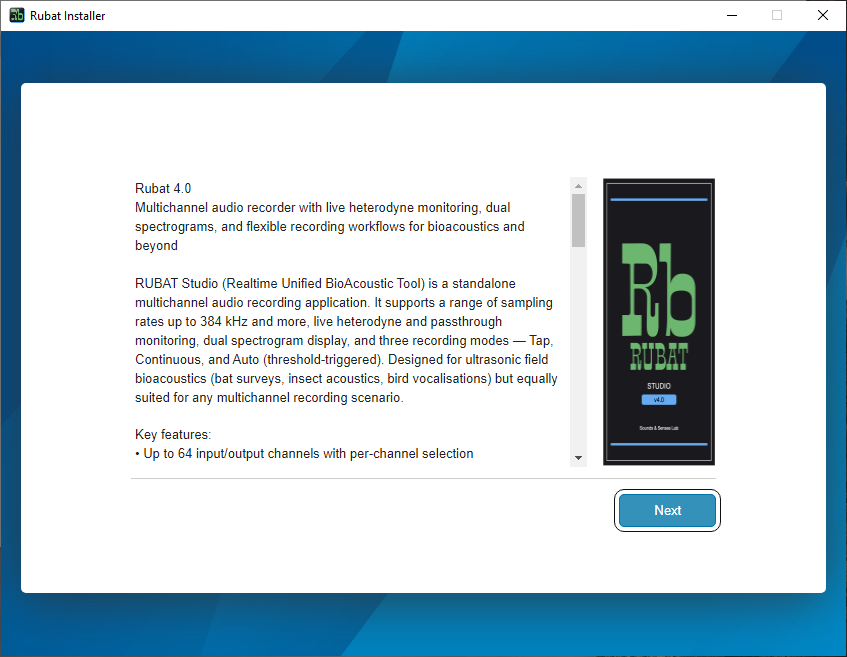
The installer welcome screen. Click Next to proceed.
3. Install MATLAB Runtime
The installer will detect whether MATLAB Runtime R2023b is already present on your system. If it is not found, the runtime will be downloaded and installed automatically. This is a one-time step — future updates to RUBAT Studio will skip it.
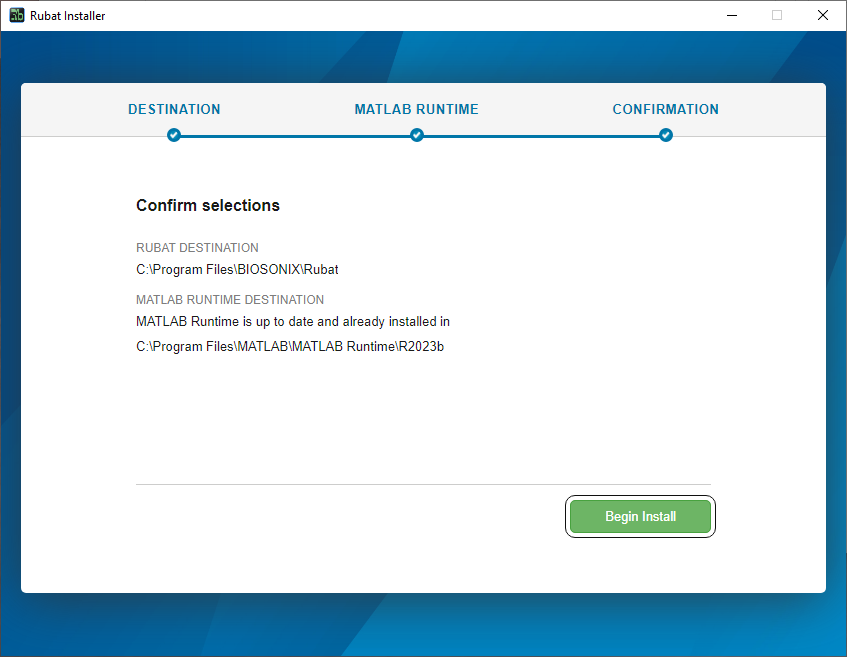
MATLAB Runtime R2023b is installed automatically. This may take several minutes depending on your connection speed.
The MATLAB Runtime is approximately 2–3 GB. Ensure you have a stable internet connection and sufficient disk space before proceeding.
4. Launch RUBAT Studio
Once the installation completes, launch RUBAT Studio from your Applications folder (macOS) or Start Menu (Windows).
Launching RUBAT Studio for the first time. A brief splash screen appears while the runtime loads.
The first launch may take a little longer as the MATLAB Runtime initialises. Subsequent launches will be faster.
5. The App
After the runtime loads, RUBAT Studio opens and is ready to use.
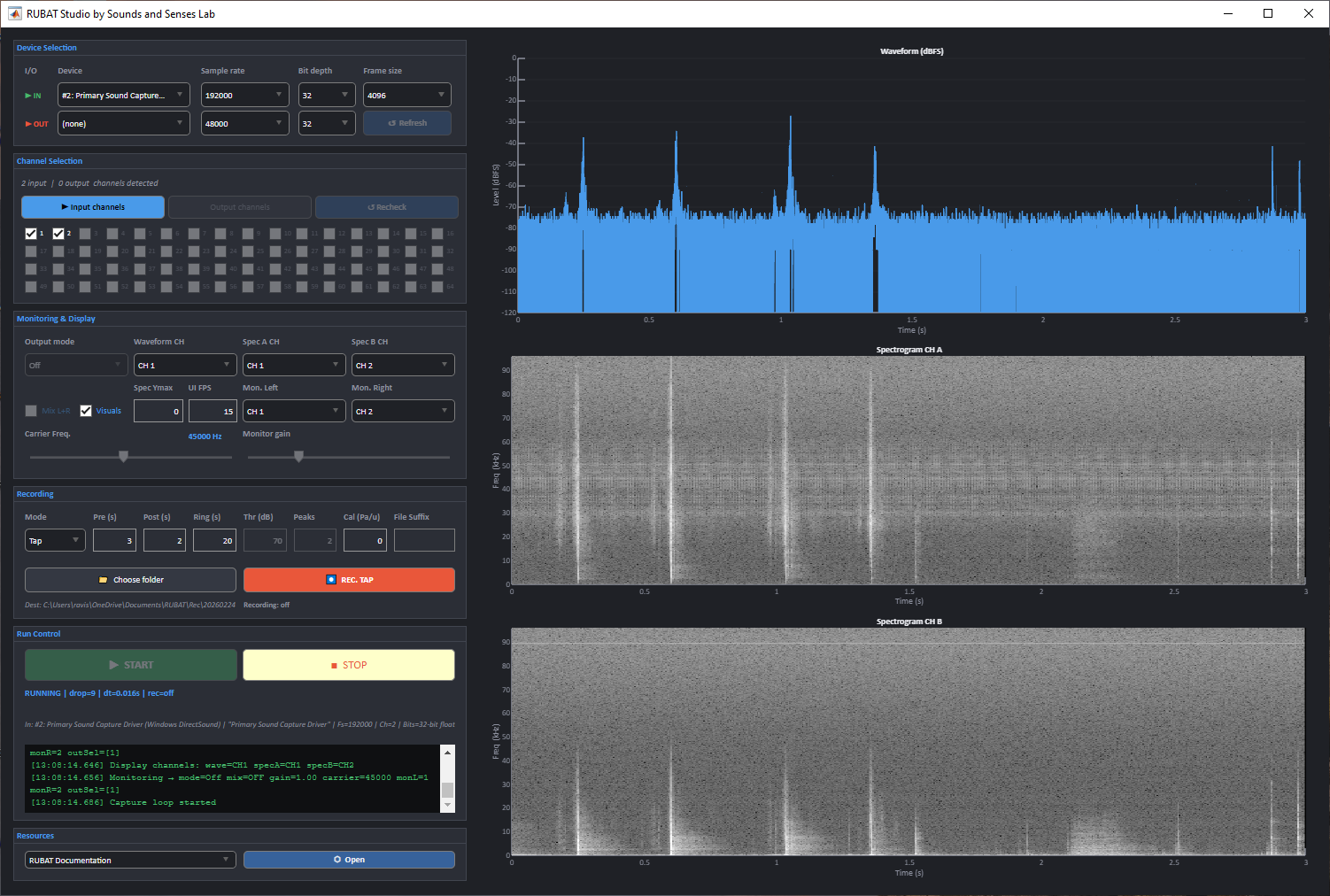
RUBAT Studio v4.0 — the main application window after a successful installation.
Troubleshooting
| Issue | Solution |
|---|---|
| macOS: “App can’t be opened” | Right-click the app → Open, then click Open in the dialog. This is required once for unsigned apps. |
| Runtime download fails | Download MATLAB Runtime R2023b manually from MathWorks and install it before re-running the RUBAT installer. |
| App launches slowly | The first launch after installation (or after a reboot) is slower while the runtime initialises. This is normal. |
| Missing audio devices | Ensure your audio interface drivers are installed and the device is connected before launching the app. |
Next: Quickstart →